Welcome to Kiosk Library — let's get you started
Thanks for picking up Kiosk, excited to have you onboard. Here are a few quick tips to get started.
Your download (v2.0.4) is starting… Didn't start? Click here.
Need help installing? Hop on Discord →
First 60 seconds
Three steps to get your library running.
Install & launch
Run the installer, then open Kiosk. On first launch it initializes the full Poly Haven library — this only happens once and takes about 30 seconds.
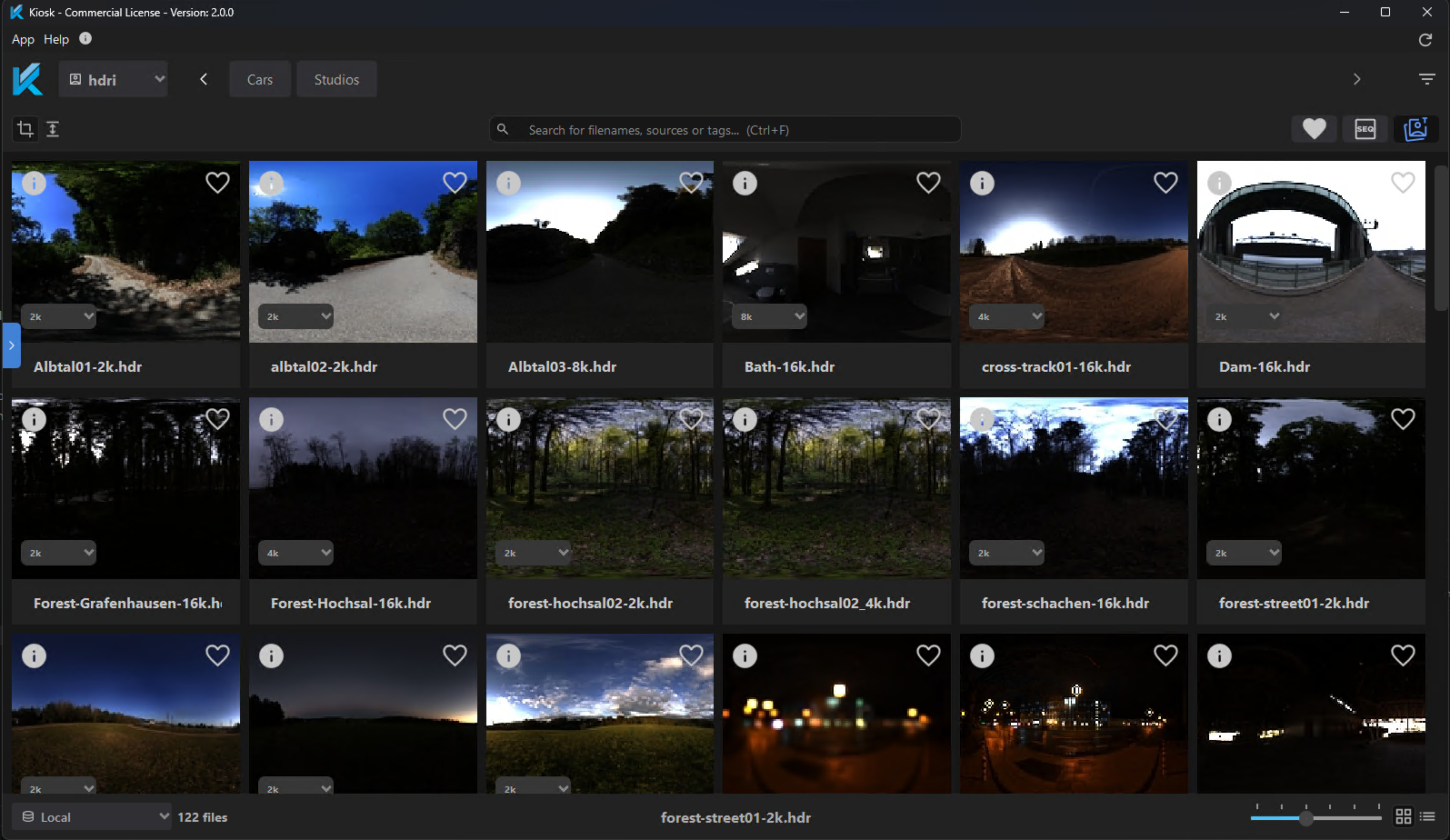
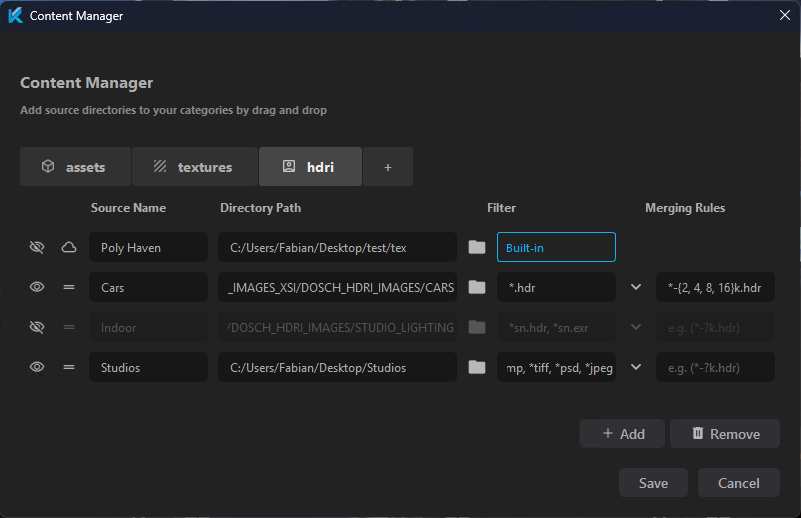
Add your folders
Open the Content Manager, pick a category, and add folders from your drive. Kiosk indexes them automatically and generates thumbnails for images and HDRIs.
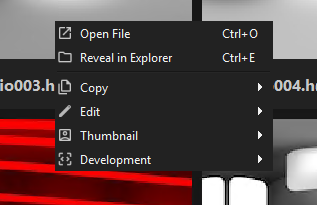
Generate 3D thumbnails
For FBX, USD, OBJ and other 3D files: right-click any thumbnail → Generate 3D Thumbnail, or right-click the Source to batch-generate the whole folder.
Using Kiosk inside your DCC
Launch Kiosk from inside your DCC to enable direct export:




Once connected, the active Live Session appears in the top-right corner of Kiosk. You can now export your files directly into your scene.
Default behaviour:
- • HDRI → Creates Domelight with exported texture connected (swaps if a light is selected)
- • Textures → Creates Material with texture-set connected
- • Assets → Imports asset into your scene
- • Custom → Create custom Categories with custom export behaviour Pro
Hidden Gems
Kiosk Pro
The Pro version removes limits and adds:
- •Custom Categories (e.g. Volumes, HDA, proxies)
- •Shared studio databases
- •Custom plugins
- •Command scripts & automation workflows
Would love to hear your thoughts once you've had some time testing Kiosk in your workflow.
Thanks again,
Fabian