 blender plugin free
Kiosk for Blender
// overview
The Kiosk Blender plugin installs as a standard Blender addon and connects to your running Kiosk instance. Browse your entire library, preview thumbnails, and execute custom import commands — all from within Blender's interface. Whether you're importing FBX models, applying PBR textures, or loading HDRIs into your world shader, Kiosk handles it with a single click.
// features
More than a Blender plugin
Poly Haven, auto-wired PBR materials, one-click Command Stacks — Kiosk handles the busywork so you can stay in Blender.
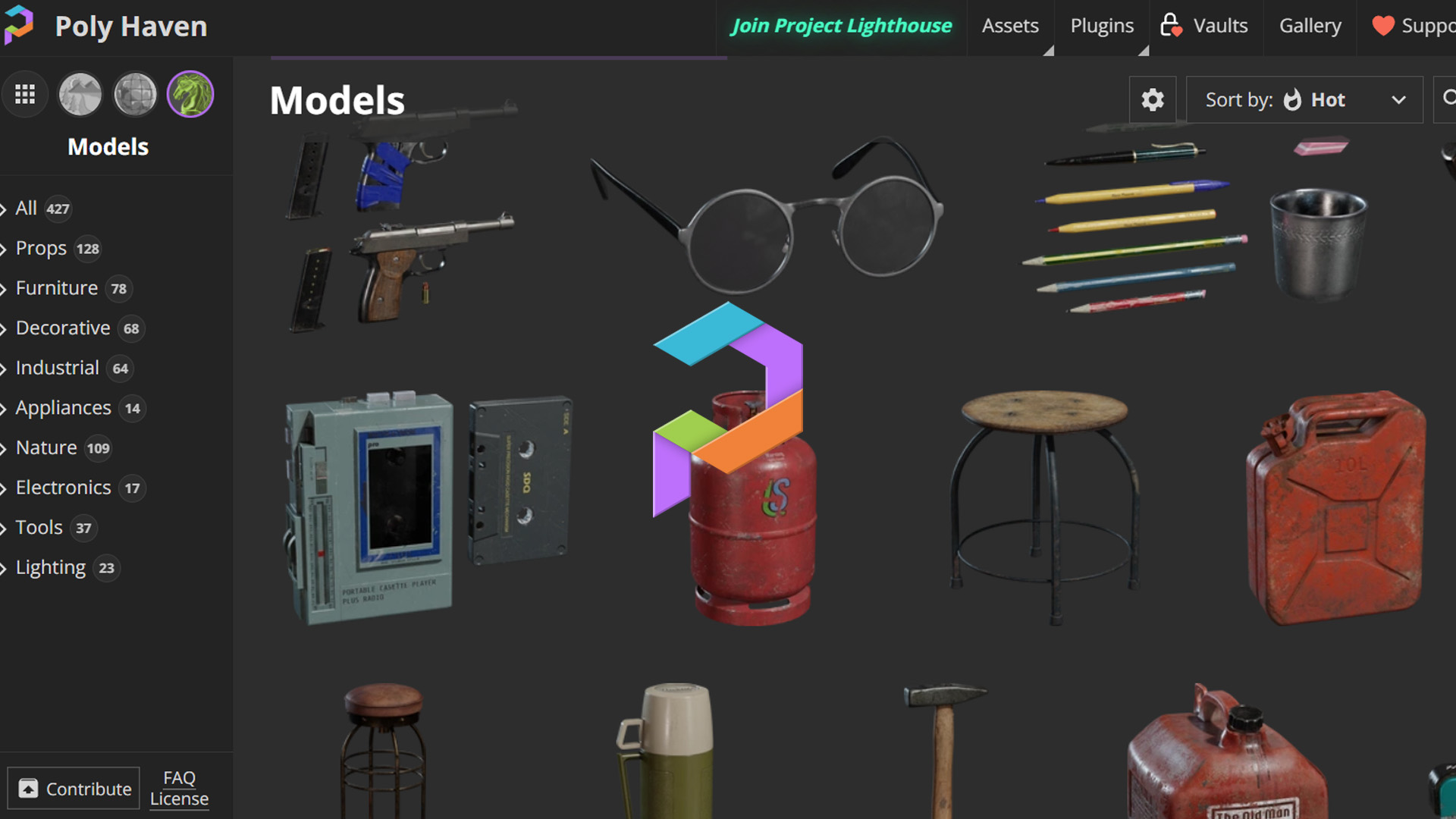
Poly Haven, built in
3,000+ free HDRIs, textures, and 3D models — browse and download from Poly Haven inside Kiosk, then send them straight into Blender.
OpenPBR Detection
Kiosk auto-detects PBR texture sets and wires a complete material — base color, roughness, metalness, normals, and more — the moment it lands in Blender.

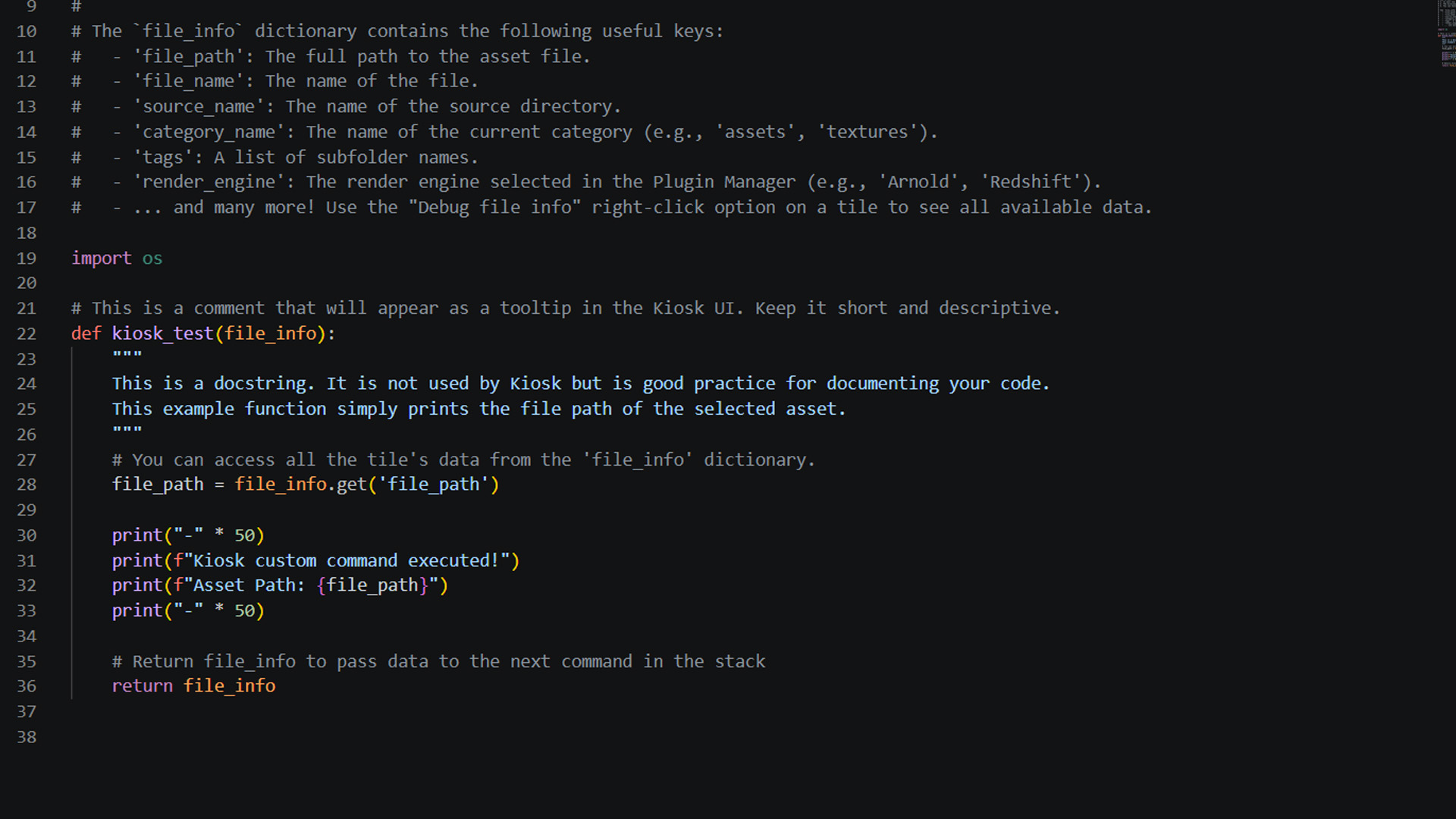
One-click Command Stacks
Build sequences of Python commands per category. Import an asset, create a material, and set up lighting — all in a single click inside Blender.
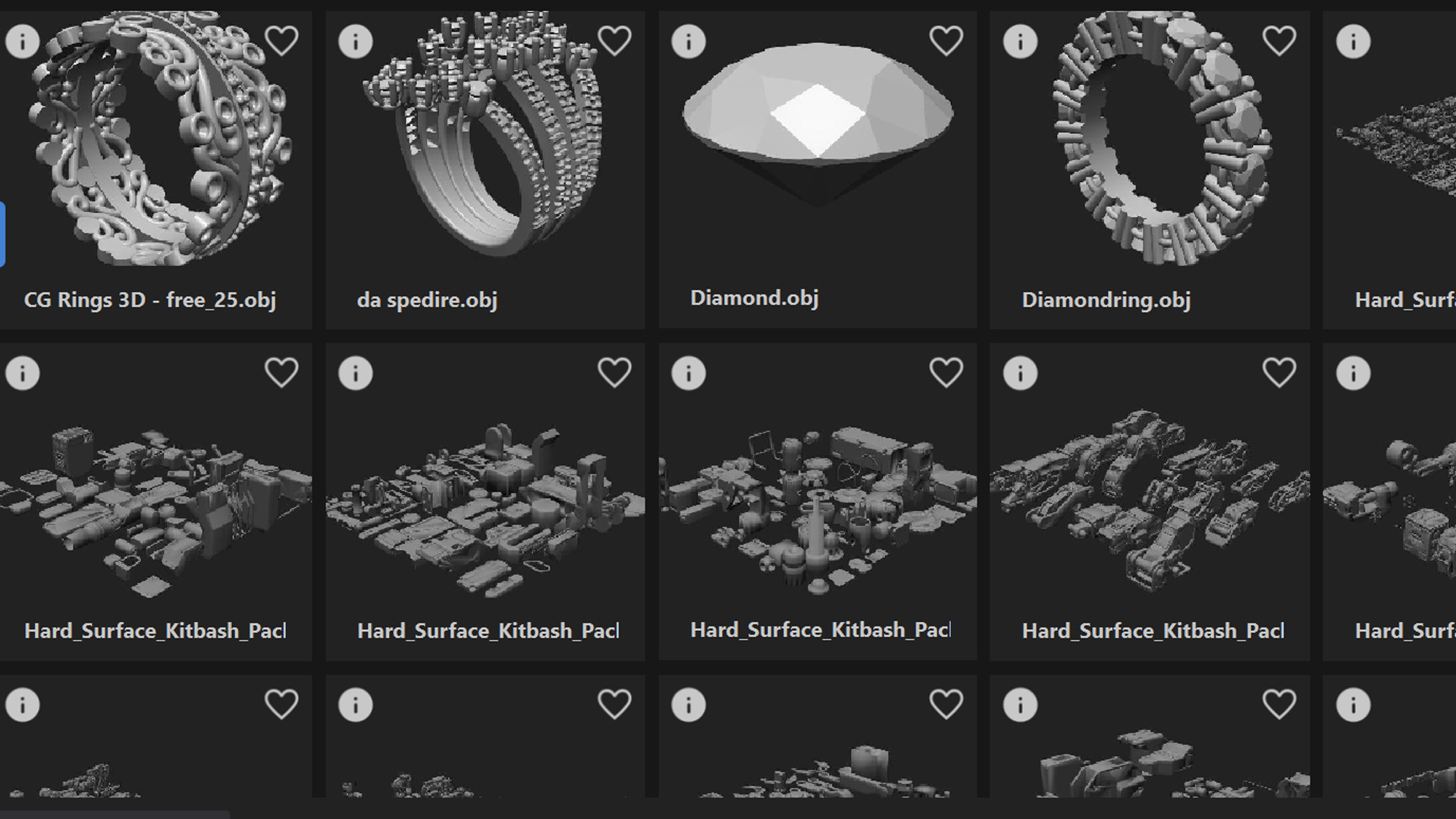
Auto Thumbnails
Every model, texture, and HDRI gets a visual preview generated automatically. Browse your whole library by image, never by filename.
// workflow
Built for your Blender workflow
Designed to fit the way you already work.
One-Click Export
Click any asset in Kiosk and it lands directly in your Blender scene. No drag and drop, no file dialogs — just click.
N-Panel Integration
Kiosk lives in Blender's sidebar (press N). Your entire library is one keystroke away without ever leaving the viewport.
OpenPBR Detection
Kiosk automatically detects PBR texture sets and wires a complete Principled BSDF node setup — base color, roughness, metalness, normals, and more.
Polyhaven Inside Blender
Browse and download HDRIs, textures, and 3D models from Polyhaven directly inside Kiosk. Assets land in your scene ready to use.
Auto Thumbnails
Every model, texture, and HDRI in your library gets a visual preview thumbnail generated automatically — browse by image, not by filename.
Supported Renderers
Cycles and EEVEE. PBR material node trees are set up automatically for whichever renderer you're working with.
// setup
Up and running in minutes
Installing the Blender plugin takes less than 5 minutes.
- 1
Download and install Kiosk Library on your machine.
- 2
In Kiosk, open App Menu → Plugin Manager, select Blender, and click Install. Browse to your Blender installation directory — Kiosk copies the addon automatically.
- 3
In Blender, go to Edit → Preferences → Add-ons and enable Kiosk for Blender.
- 4
Open the Kiosk panel in the N-panel (press N in the viewport).
- 5
Click Launch Kiosk in the panel. A green dot in Kiosk's top-right confirms the live session is active.
// integrations
Use a different app too?
One library, every DCC. Kiosk plugs into all of them.




Bring your library into Blender.
The Blender plugin is free. No account, no subscription. Install it in minutes and never leave your workspace to find an asset again.