kiosk mcp server
Make your AI agent
use your assets.
Add Kiosk to your usual scene prompt. Give your AI assistant access to the models, materials and HDRIs in your library.
Kiosk 2.1.1 / Pro & Studio / 7-day MCP trial in Free

“Use Kiosk to find a mature tree, paving materials and a daylight HDRI in my library. Show me the selection before importing.”
blender scene comparison
A courtyard, before and after.
The scene started with a simple brief. Build a sunlit courtyard around a mature, spreading tree.
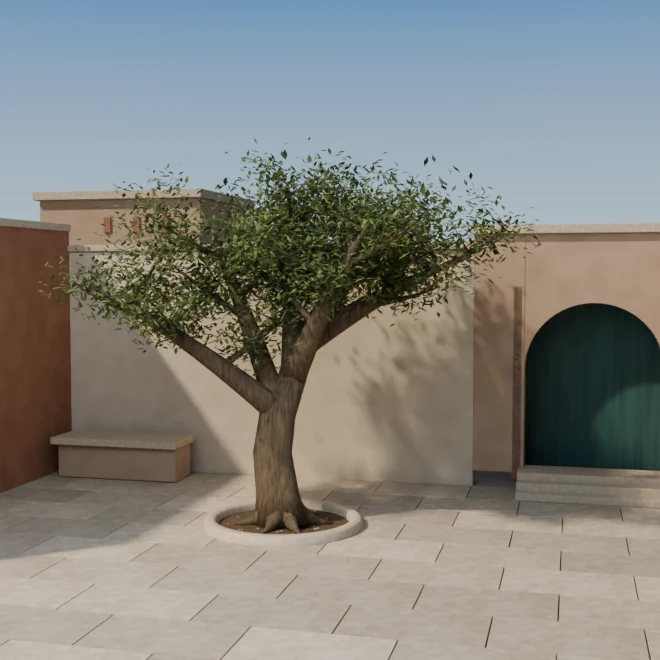
The assistant built the courtyard and modelled the tree directly in Blender.
Kiosk supplied the tree, paving and door materials, sky HDRI and garden props. The final render also uses revised framing and lighting.
The assets behind the courtyard
Seven models, materials and lighting assets brought into Blender through Kiosk MCP.
Tap a marker to find its asset.

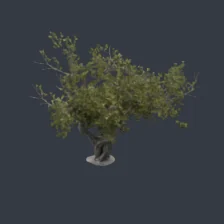


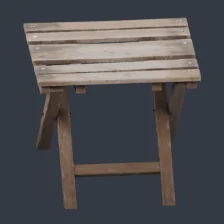


Assets from Poly Haven.
how it connects
From your prompt to the final frame.
Kiosk handles asset search, visual previews and import commands, so your agent can focus on building the scene.
- 01 / DIRECT
AI agent
Understands your brief
- Interpret your prompt
- Direct the scene work
Claude / Codex / Cursor / VS Code
- 02 / FIND
 Kiosk MCP
Handles the asset work
- Search the asset library
- Inspect assets through visual previews
- Import with your command stack
Models / materials / HDRIs
- 03 / BUILD
Your 3D app
Works with your assets
- Arrange the scene
- Set camera and lighting
Blender / Maya / Houdini / Cinema 4D / Unreal
- 04 / OUTPUT
The finished shot
Render from your scene
- Review the render
- Refine the scene as needed
Final render
from a prompt to your project
Bring your library into the brief.
Open your scene.
Launch Kiosk from the 3D application you are working in. Connect your AI client once in Preferences.
Add to your usual prompt.
"Use Kiosk to find the models, materials and HDRIs in my library. Show me the selection before importing."
Review the assets.
Approve the selection. Kiosk imports it into your open project, and your assistant continues building the scene.
Kiosk handles asset discovery and delivery through your saved commands. Your agent uses its connection to your 3D application to arrange, light and render. Available actions depend on the integration, file format and renderer you use.
connect your tools
Connect once.
Use it in your next prompt.
Setup routes for Claude Desktop, Codex, Cursor and VS Code are in Kiosk's AI integrations preferences.
Download Kiosk & try MCP Already installed? Connect your agent →Included with Pro and Studio. Free includes an optional 7-day MCP-only trial. Start it in App > Preferences > AI integrations. Your normal Free library stays available after the trial.
You approve the assets. Review the selection and target scene before Kiosk delivers it. Your AI client's scene controls follow their own approvals.
Requested metadata and previews reach your AI client and may be processed by its provider. Keep your connection details private. MCP download limits →